Phase Interpreter
Phase Interpreter software reads phase maps of your samples (thin sections, polished blocks, resin mounts, etc.) that were saved from other programs (QuPath, TIMA Tescan) and analyses them with geoscientific image analysis (modal abundances, associations, and grain sizes). The user interaction (editing labels, drawing regions of interests) turn the maps into mineral maps that describe a particular assemblage (e.g., phase/melt reaction, metamorphic assemblage, high pressure-temperature experimental product).
The analysis generates outputs saved in a folder (see ’trial_tag’) that contains the analyses of drawn regions of interest (ROI) saved serially in the sub-folder structure. The output can be refined and reused elsewhere. For example, the software can also export mineral masks to other software for spectral interrogation (e.g., GeoPIXE). In addition, the source code repository includes a script to send segmentation masks to Iolite v4.
The current version supports input phase maps produced in:
QuPath v0.7 using the Pixel Classifier tool and saving the predicted map to a labelled image file (*.ome.tif).
TIMA v2.12.0 using the mineral liberation routine and exporting the sample dataset (scan) in MinDIF format to export a folder. See Help manual.
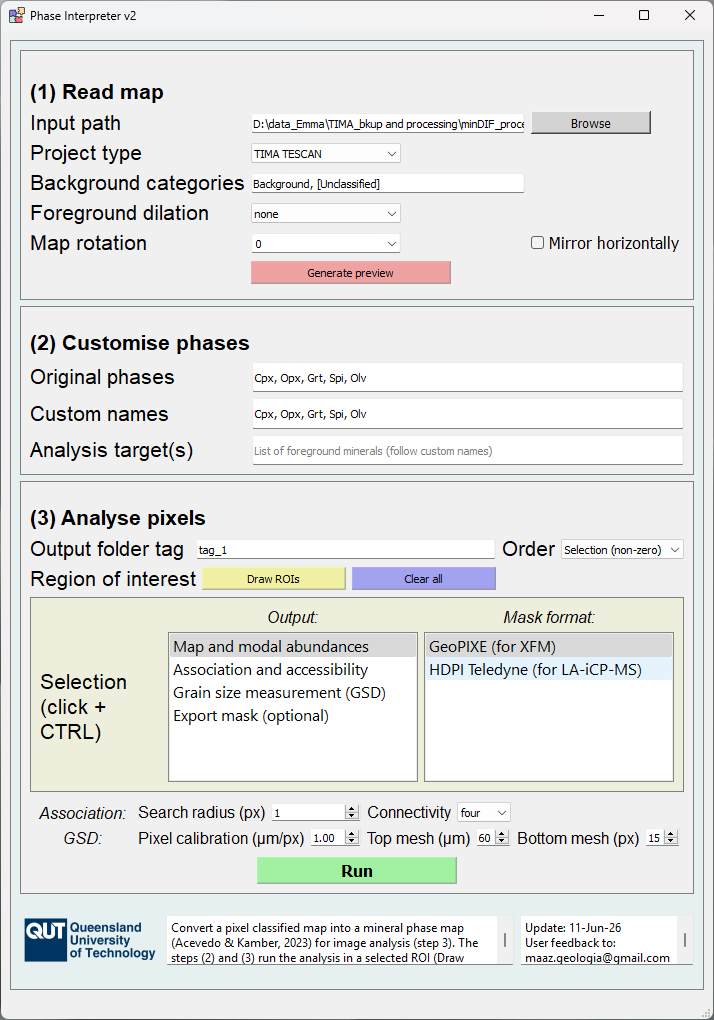
Figure 7: Phase Interpreter v2 graphical user interface
We called the analysis basic because in the current version, we still work with a few mineral ‘masks’ not with thousands of ‘grain masks’. A future release will incorporate object segmentation label maps (after Cube Converter edges subtraction or object-based segmentation) support to make the grain analysis more meaningful. Lots of progress has been made.
Define map
The user needs to describe what the phase map contains and how it is constituted and oriented. The main aim is to define what is the map foreground (rock) and background (fringes, epoxy, C-coating).
Input path: Disk location of the phase map files. A new output directory will be saved within the containing folder of the input path.
Project type: Selection of phase map type:
QuPath v0.7: File located within QuPath project. It is the labelled map predicted and saved (OME-TIFF) using the Pixel Classifier tool. After running the application, the output folder has the same name as the corresponding classifier that you trained in QuPath.
TIMA Tescan v2.11.1: Sub-folder located within a MinDIF export folder. This sub-folder is usually named with a serial name and sits next to a data.sqlite3 file. If many samples were scanned in the same TIMA project, the folder will contain many sub-folders. You will need to be familiar with the one you need. After running the application, the output folder can be
..\minDIF_processing\7802893c-1432-4859-8305-db91b3f2d863\phasemap_reconstruction.
Background categories: Comma-separated list of the original names of the phases that are surrounding the sample and need to be ignored. For example, you can have a Background, [Unclassified], and epoxy categories around the sample.
Foreground dilation: Sliding window (kernel) size (1x1 to 60x60 px) to smooth out and dilate the detected foreground. This option heals gaps in your map due to background detection. Do not choose phases within the foreground. The option is useful if your sample was broken in two pieces making your phase map split two taking only the largest one (default behavior).
Map rotation: Custom rotation transformation (0, 90, 180, 270). Most phase maps are vertical but you want them to fit in your screen or pre-align them with other experiments (default= 90).
Generate preview: Button to produce a preview of the phase map and modal mineralogy. The preview will also save files within the new folder created corresponding to:
Foreground image: sectionMask.tif of the detected foreground
Labelled images: phasemap_label_full.tif, phasemap_target.tif
RGB maps: phasemap_target_RGB.tif, phasemap_target_legend.tif
Species found: species.xlsx containing the ranked (by number of pixels) phases with their new preliminary label numbers and original RGB colour triplets.
Customise phase map
This section allows iterative improvement of the analysis.
Originals (ranked): Comma-separated list of phases that were found in the original map after reading the corresponding metadata.
Custom names: User input to rename the list above in geologically meaningful way (mineralogy, phenocryst, matrix, unknowns).
Select analysis targets: Narrowed down user list to perform any further analysis on the rock. It must follow the Custom names but it can be sorted differently for downstream analysis. You can exclude artefact phases as well such as holes, epoxy bubbles, hair, and marker drawings.
Image analysis
Extraction of high-level information about the mineral map.
Output folder tag: New sub-folder name (e.g., trial_{number}) containing the analysis results.
Region of interest (ROI): Buttons to begin drawing or clearing all ROIs. If skipped or cleared out, the ROI will be the full area of the map taking longer to process. The interface for drawing ROIs is described in the next sub-section.
Results sorting: Select how the minerals will be shown and sorted in the outputs.
Selection: Selected analysis targets in the defined order. Consistent across different ROIs.
Non-zero selection (default): ‘Selection’ with only minerals more abundant than one pixel (to save space in the plots).
Ranked: ‘Non-zero selection’ ranked by abundance and ignoring the defined order.
User selection: Selectable lists of image analysis (generate) and export options.
Targets map and modal abundances: Similar to the previous outputs but constrained to the ROI.
Association index matrix and accessibility maps: Plots (and tables) showing the frequency of pixel contacts between different mineral categories.
Search radius (px): Sliding window radius around the central pixel to configure a square kernel (n_pixels x n_pixels). Increase the radius when the input mineral map is noisy to ignore low-frequency phase contacts.
Connectivity: Lateral pixel connectivity for the window search. ‘Four’ searches in the cardinal directions while ‘Eight’ includes searching in diagonal directions. Using Eight is more computationally expensive and for phases with very small grain size, this can bias the results if the phases are in diagonal contact.
Grain measurements and size distribution:
Pixel calibration \(\mu\)m/px): Pixel size of the input map. After QuPath, the map is usually half the dimensions of the original images in the image stack when prediction was done at Very High=2 (not Full) spatial resolution. Today, the information about the pixel calibration is not connected upstream in the pipeline (future work).
Top mesh (\(\mu\)m): The grain size distribution (GSD) of each mineral is calculated in equal intervals from a bottom to a top mesh value. This is the largest value of the digital mesh aperture.
Bottom mesh (px): The minimum mesh used for GSD. It makes sense to define it in pixels since we visualise (measure) discretisation effects on fine-grained target minerals.
Mask export: Whether or not to export the mineral masks to another software. Select the export format in the adjacent selectable list on the right-hand side. So far, the list includes CSIRO GeoPIXE software Q-vectors. These need to be retrieved in the supercomputer for mask spectral interrogation that allows finding new X-ray peaks.
ROI annotation tool
This window opens when clicking the ‘Draw ROI’ button above and is designed to annotate the rock map highlighting a specific texture pattern (different assemblage, clasts, glomerocrysts) within the map. The annotation menu on the right-hand side has a list of annotations that can be renamed and saved as checkpoints for further analyses. The annotation polygons are looped through the image analysis process on the all selected analyses.
Type: Select the next annotation type as freehand, polygon, rectangle or circle.
List: Annotations will appear here according to the order they are drawn. The list allows renaming and sorting (gray up/down arrows) the annotations manually.
Customising buttons: Customise the list adding (+), deleting (X) or clearing all (trash bin) annotations.
Save & exit button: Save the annotations checkpoint to a file (MAT) within the Tag folder (parent of all annotations). This loads the annotations into run the application.
Load progress button: Load a previous annotation checkpoint and add them to the list.
Copy metadata button: Copy some relevant information about the mineral map to remember where you saved it.
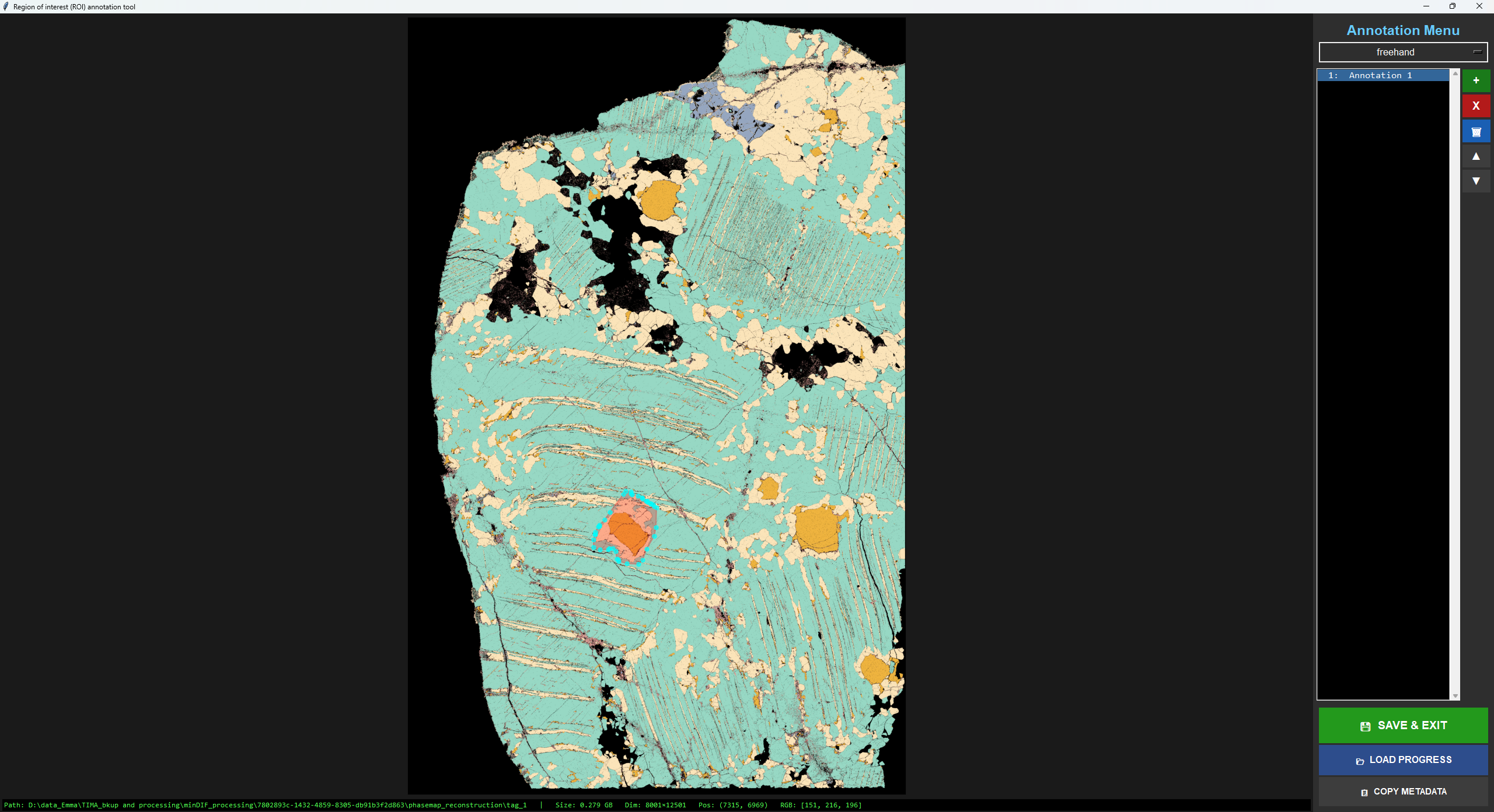
Figure 8: Region of interest (ROI) manager in Phase Interpreter showing the Annotation Menu (right-hand side) with a free-hand annotation (cyan contour). The input map was generated in TIMA software and could be imported and processed using the image analysis tools (looped for each annotation).